A browser report and a device report can look almost identical: a few categories, percentages, and a colorful chart. They answer different questions, however. Browser categories describe software classifications. Device categories describe broad hardware groupings. Neither tells the full story of the available space, the input method, or the task a person is trying to complete.
This distinction matters when a team moves from reporting to design. An apparent mobile issue might involve a narrow layout, an awkward touch target, or a particular browser behavior. Treating all three as the same problem can send an investigation in the wrong direction. Start by separating the concepts, then choose the smallest useful combination for the question at hand.
Give each dimension a precise meaning
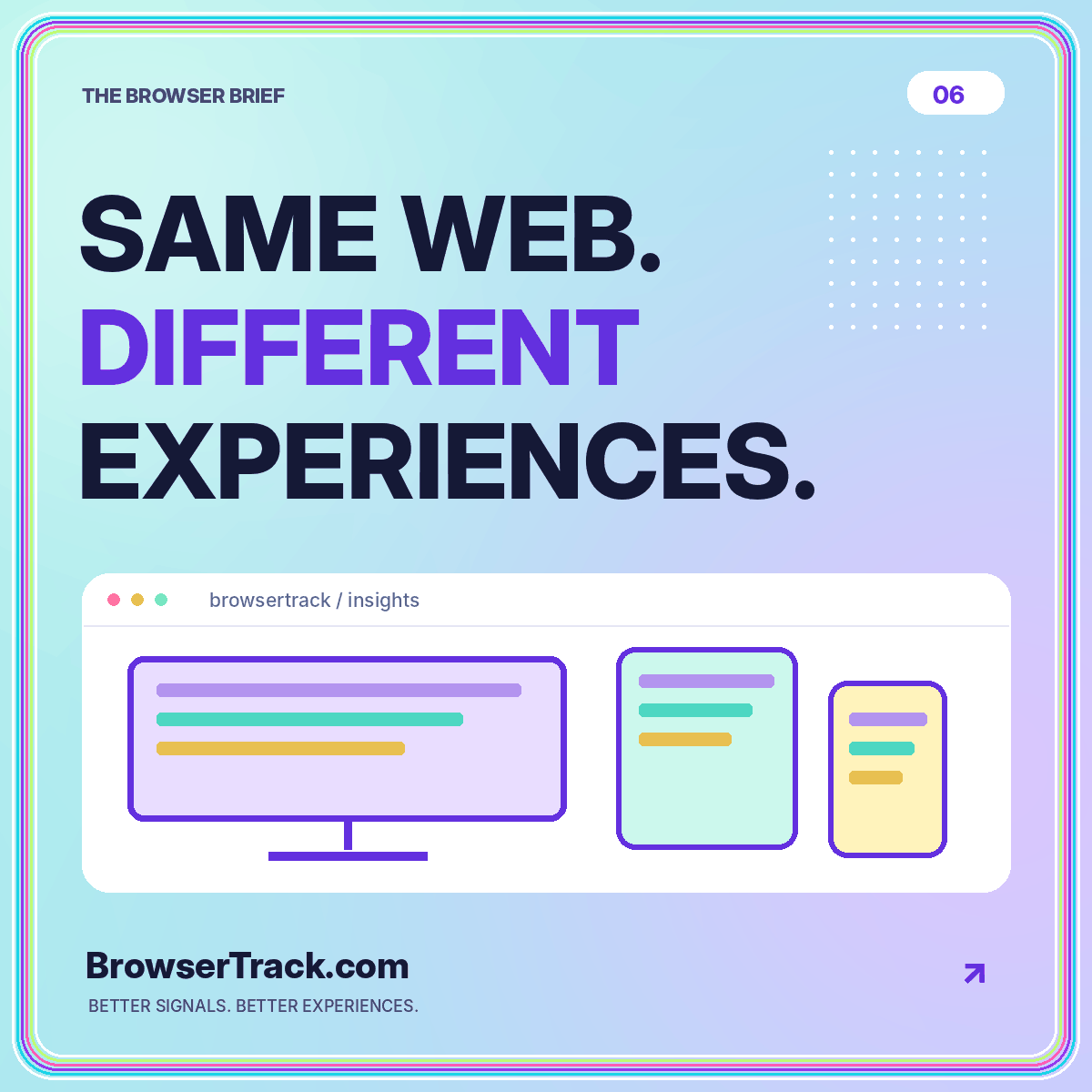
Define browser family, device category, viewport size, and input characteristics separately in your measurement dictionary. A browser family is a software label. A device category might be desktop, mobile, or tablet. A viewport describes the area available to the page. Input characteristics describe how interaction can occur.
Do not use these labels interchangeably in a report. “Mobile users could not open the menu” is a different statement from “the menu failed at a narrow viewport during our test.” The first describes a population; the second describes observed behavior under particular conditions.
The browser analytics overview explains how classification can support test planning. Keep the method and any uncertainty attached to the label. When the classification is unknown, preserve that uncertainty rather than moving the record into whichever category seems most convenient.
Use viewport evidence for layout questions
For layout work, test the space the page actually has. MDN’s media query guide describes how CSS can apply styles based on media features such as viewport dimensions and interaction capabilities. That allows a layout to respond to relevant conditions rather than simply to a browser’s brand name.
In your own test plan, inspect the navigation, content width, card stacking, and text wrapping at several useful widths. Include a width between the common device presets so the layout is not tested only at a few convenient screenshots.
A wide monitor does not guarantee a wide browser window. A person may use split-screen mode or resize the page. The reporting and design discussion should therefore distinguish the physical device from the space currently available to the website.
Use browser evidence for compatibility questions
A browser breakdown becomes useful when you need to organize tests around software environments. It can help identify where to reproduce an observed error or where an important visitor task deserves additional coverage.
Do not assume the browser label explains the problem. A browser segment can differ in landing pages, device mix, or audience context. Start with a specific behavior, such as a disclosure panel that does not open, and test that behavior in the relevant environment.
Turn the label into a reproducible setup
Record the browser version, operating system, viewport, and steps you actually used. “Tested in Safari” is less informative than a clear environment record and a repeatable action sequence. If the issue cannot yet be reproduced, describe it as an observed reporting pattern rather than a confirmed compatibility defect.
Think about input as part of the task
A narrow layout can be visually attractive while still being awkward to operate. A menu might depend on hover, a small control might be difficult to target, or a focus indicator might disappear against a gradient. A device percentage will not identify these problems by itself.
Include touch, pointer, and keyboard checks where they are relevant. Move through the main navigation without a mouse. Open and close menus, activate links, and inspect what happens when focus moves. Test the actual task instead of treating a screenshot as a complete usability review.
Keep the result specific. “The menu can be opened with Enter, and Escape closes it” is a verifiable observation. “Fully accessible on every device” is a much broader claim that a small test cannot justify. Report the coverage honestly.
Compare within a meaningful population
Suppose a hypothetical report shows a lower goal rate for mobile sessions than desktop sessions. Before redesigning the mobile page, compare the landing-page mix. Mobile visitors may be arriving on introductory articles while desktop visitors arrive on detailed service pages. The aggregate rates can reflect different tasks.
Next, inspect the relevant task within a comparable page group. Keep the outcome definition and date window fixed. If a gap remains, choose a test that can distinguish a layout problem from another plausible explanation.
Use the visitor insights page to structure this review. It is usually more useful to compare one well-defined segment carefully than to generate an enormous cross-tabulation that leaves most combinations with too few observations to interpret confidently.
Keep the small groups visible but modest
A small segment can matter, especially when the affected task is important. At the same time, a rate based on a handful of recorded sessions should not be presented as a stable estimate of what every future visitor will do.
Show counts alongside percentages. Group very small categories when that supports a clearer and more privacy-conscious report, but document the grouping so it does not hide a known defect. A reporting simplification is not a reason to stop testing a relevant environment.
Separate the decision to investigate from the claim that a pattern is established. You can decide to test a low-volume browser because a reported problem sounds serious. That does not require claiming the report proves a widespread failure. A small, targeted test can be the next sensible step.
Build a layered test matrix
Create a matrix with a few representative software environments, several meaningful viewport sizes, and the input modes required for the task. The matrix should reflect the website’s design and supported experience, not merely repeat a list of browser logos.
For a content website, the core task might include reading an article, opening navigation, following a related link, and using contact information. For a more interactive application, the task list will be different. Keep optional enhancements separate from essential functionality so a failure can be prioritized sensibly.
Record the date and result for each completed check. The cross-browser testing checklist provides a practical starting point. A small matrix that is actually used on every relevant release is more valuable than an ambitious matrix that nobody has time to maintain.
Connect the finding to the right owner
Route a layout problem to the person responsible for responsive design, an interaction defect to the interface implementation, and a classification inconsistency to the measurement setup. Some investigations will involve more than one owner, but the initial distinction prevents unnecessary work.
Write the issue in terms of evidence. Include the affected task, the environment, the observed behavior, and any reporting context. Avoid opening a ticket that simply says “improve mobile conversion” without identifying what can be tested or changed.
After the fix, repeat the specific task and inspect the relevant reporting period when sufficient new data is available. Keep the verification separate from unrelated changes in overall audience composition. That gives the team a clearer account of what it actually improved.
Conclusion: use the lens that fits the question
Browser and device analytics are complementary, not interchangeable. Browser classifications help organize software testing. Viewport and input checks help evaluate layout and interaction. Device categories add context, but they do not explain every difference in behavior.
Start with a task, choose a relevant breakdown, and reproduce the problem under documented conditions. Keep small samples and unknown classifications visible. When every dimension has a precise meaning, the report becomes easier to read and the development team has a much better starting point for a useful change.